RápPC
-
Get ready
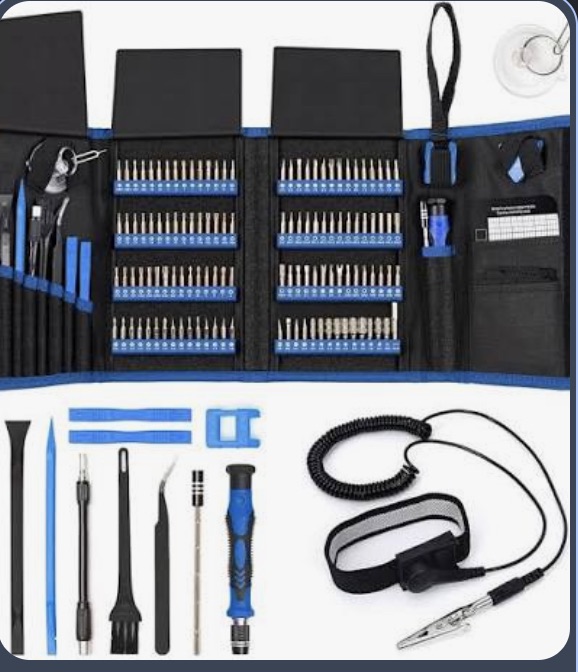
You need a Phillips #2 screwdriver, a clear table and the motherboard manual. Unbox everything, but keep the parts in their anti-static bags until you use them.
💡 Touch the metal part of the case before handling parts to discharge static electricity.
Chuẩn bị
Bạn cần một tua vít đầu chữ thập (#2), một mặt bàn trống và sách hướng dẫn mainboard. Mở hộp mọi thứ, nhưng để linh kiện trong túi chống tĩnh điện cho đến khi dùng.
💡 Chạm tay vào phần kim loại của vỏ case trước khi cầm linh kiện để xả tĩnh điện.
-
Install the CPU
Do this with the motherboard on its box, outside the case. Lift the socket lever, line up the small triangle on the CPU with the triangle on the socket, set the CPU down gently and lower the lever.
💡 Never press the CPU in. If it doesn't drop in on its own, it's rotated the wrong way.
Lắp CPU
Làm bước này khi mainboard còn đặt trên hộp, chưa cho vào case. Nhấc cần gạt của socket, khớp hình tam giác nhỏ trên CPU với tam giác trên socket, đặt CPU xuống nhẹ nhàng rồi hạ cần gạt.
💡 Không bao giờ ấn CPU xuống. Nếu CPU không tự nằm vào, nghĩa là bạn đặt sai chiều.
-
Install the RAM
Open the clips on the RAM slots, line up the notch on the stick with the slot, and push down firmly on both ends until the clips snap shut.
💡 With 2 sticks, use the slots the manual recommends (usually A2 and B2), not the two next to each other.
Lắp RAM
Mở chốt ở khe RAM, khớp khe hở trên thanh RAM với khe cắm, rồi ấn mạnh hai đầu cho đến khi chốt tự đóng lại kêu "tách".
💡 Nếu có 2 thanh, cắm vào khe sách hướng dẫn khuyên (thường là A2 và B2), không cắm 2 khe sát nhau.
-
Install the M.2 SSD
Remove the M.2 heatsink if there is one. Slide the SSD into the slot at a slight angle, press it flat and fix it with the small screw or clip.
💡 Peel the plastic film off the heatsink pad before putting the heatsink back.
Lắp ổ cứng M.2 SSD
Tháo tấm tản nhiệt M.2 nếu có. Cắm SSD vào khe hơi nghiêng một góc, ấn nằm phẳng xuống rồi cố định bằng con vít nhỏ hoặc chốt.
💡 Bóc lớp nhựa bảo vệ trên miếng tản nhiệt trước khi lắp tấm tản nhiệt lại.
-
Mount the CPU cooler
If the cooler has no thermal paste on it, put a pea-sized dot in the middle of the CPU. Screw the cooler down evenly, corner to corner, and plug its fan into the CPU_FAN header.
💡 Remove the plastic film on the bottom of the cooler. Forgetting it makes the CPU overheat.
Lắp tản nhiệt CPU
Nếu tản nhiệt chưa có sẵn keo, chấm một giọt keo tản nhiệt bằng hạt đậu vào giữa CPU. Vặn tản nhiệt xuống đều tay theo đường chéo, rồi cắm quạt vào chân CPU_FAN.
💡 Bóc lớp nhựa dưới đáy tản nhiệt. Quên bóc thì CPU sẽ bị quá nhiệt.
-
Put the motherboard in the case
Snap in the I/O shield first if your motherboard doesn't have one built in. Check the standoffs match the motherboard's screw holes, lower the board in and screw it down.
💡 Don't overtighten. Stop as soon as the screw feels snug.
Đặt mainboard vào case
Gắn tấm chắn I/O vào case trước nếu mainboard chưa gắn sẵn. Kiểm tra các trụ đỡ (standoff) khớp lỗ vít trên mainboard, đặt mainboard vào rồi vặn vít.
💡 Đừng vặn quá chặt. Thấy vít vừa chặt tay là dừng.
-
Install the power supply
Slide the PSU into its spot, usually at the bottom of the case, and screw it in from the back. Connect the 24-pin cable to the motherboard and the 8-pin CPU cable near the top.
💡 If the case has a vent under the PSU, face the PSU fan down so it pulls in cool air.
Lắp nguồn
Đẩy nguồn vào vị trí, thường ở dưới đáy case, rồi vặn vít từ phía sau. Cắm dây 24-pin vào mainboard và dây 8-pin CPU ở gần phía trên.
💡 Nếu case có lỗ thông gió dưới nguồn, quay quạt nguồn xuống dưới để hút gió mát.
-
Install the graphics card
Remove the slot covers on the back of the case, push the card into the top long PCIe slot until it clicks, screw it to the case and plug in its power cables.
💡 For powerful cards, use a separate cable for each power plug instead of one split cable.
Lắp card đồ họa
Tháo các nắp che khe ở mặt sau case, cắm card vào khe PCIe dài phía trên cùng cho đến khi kêu "tách", vặn vít giữ card vào case rồi cắm dây nguồn cho card.
💡 Với card mạnh, dùng dây riêng cho từng cổng nguồn của card thay vì một dây chia đôi.
-
Connect the case cables
Plug in the front-panel cables (power button, reset, LED), front USB, audio and case fans. The front-panel pins are tiny, so follow the diagram in the motherboard manual.
💡 If the PC won't turn on later, the power button cable is the first thing to check.
Cắm dây của case
Cắm các dây mặt trước (nút nguồn, reset, đèn LED), USB phía trước, âm thanh và quạt case. Chân cắm mặt trước rất nhỏ, nên làm theo sơ đồ trong sách hướng dẫn mainboard.
💡 Nếu sau này bấm nút mà máy không lên, hãy kiểm tra dây nút nguồn đầu tiên.
-
First boot
Plug the monitor into the graphics card, turn on the PSU switch and press power. In the BIOS, check that all the RAM and the SSD show up, turn on XMP/EXPO for full RAM speed, then install Windows from a USB drive and update your drivers.
💡 Plugging the monitor into the motherboard instead of the graphics card is the most common "no picture" mistake.
Khởi động lần đầu
Cắm màn hình vào card đồ họa, bật công tắc nguồn rồi bấm nút mở máy. Trong BIOS, kiểm tra máy nhận đủ RAM và SSD, bật XMP/EXPO để RAM chạy đúng tốc độ, rồi cài Windows từ USB và cập nhật driver.
💡 Cắm màn hình vào mainboard thay vì card đồ họa là lỗi "không lên hình" phổ biến nhất.